30-Day Social Media Content Plan: A Filled Grid for Multiple Platforms
Count Your Hours, Fill All 30 Days, And Keep The Plan Running When Things Change
How many posts can you actually make in 30 days?
Start with hours, not a posting target. A plan fails when it needs more hours than you have. No platform rule gives you the right number, so count your own capacity.
Multiply your production hours per week by four. Then price each post type in hours, using your own past work.
Illustration only: a solo creator has 6 production hours a week, so 24 hours in the month. A core piece takes 3 hours. Another lead post takes 30 minutes. An adapted version takes 15 minutes. The grid in this guide has 4 core pieces, 17 other lead posts, and 10 adapted versions. That is 23 hours, which leaves 1 spare hour.
These hours are examples, not benchmarks. Time your own work for one week, then replace them. If the total runs over, cut adapted versions first, then lead posts. If it still runs over, drop a platform for the month.
How to build a one-month content plan for multiple platforms
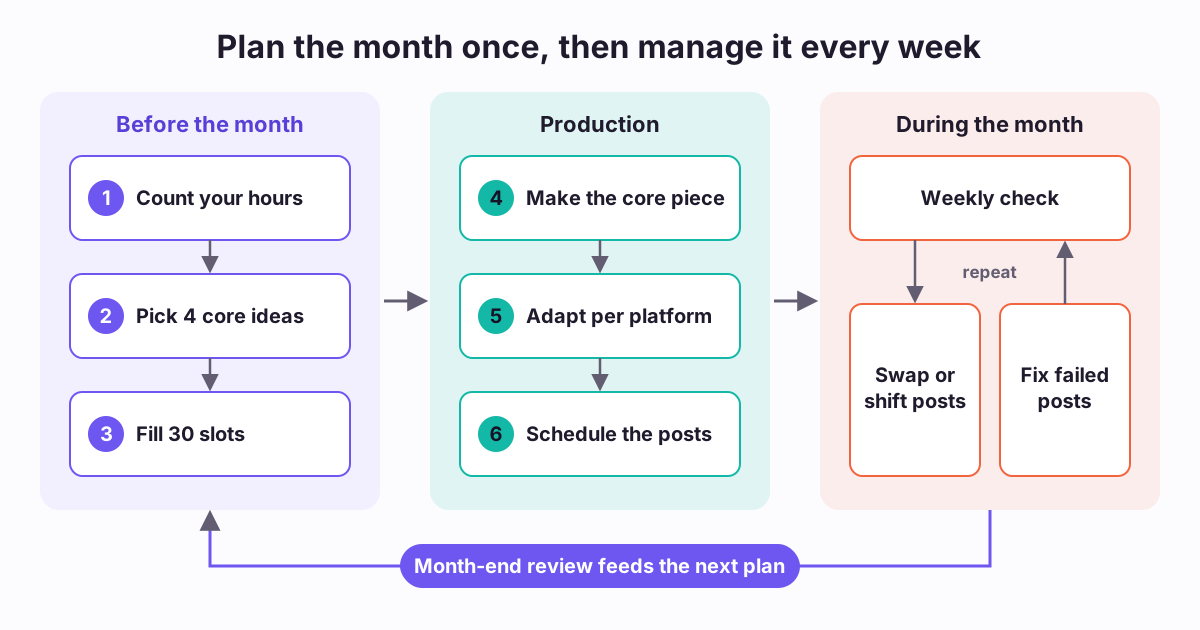
Work in this order. Each step gives the next step its input.
- Step 1: Count your hours. Write the monthly total at the top of the plan.
- Step 2: Choose your platforms. Keep only the ones you can serve every week.
- Step 3: Set one goal for the month. Choose one outcome, such as email sign-ups or bookings.
- Step 4: Pick four core ideas. Give each week one idea and one job: teach, prove, connect, or offer.
- Step 5: Pin the fixed dates. Add launches, events, and holidays before anything else.
- Step 6: Fill the slots. Give each day a job, a lead post, and any adapted versions.
- Step 7: Protect the open slots. Leave one slot each week for timely posts and replies.
- Step 8: Group the production work. Record in one sitting, write in another, and design in a third.
- Step 9: Stay one week ahead. Schedule at least the next 7 days, so each check has a buffer.
A filled 30-day content plan example
The reference table below fills all 30 days for YouTube, Instagram, TikTok, and LinkedIn. It is an illustration only. It shows a structure, not a proven schedule.
Each week has one core idea and one job. The first post of the week is the core piece, and the other posts come from it. The core piece changes format each week, so one platform does not carry the whole month.
The grid holds 21 lead posts, 10 adapted versions, 4 open slots, and 5 review days. Days 6, 13, 20, and 27 stay open. Days 7, 14, 21, 28, and 30 have no post.
To reuse the grid, download our free content calendar template and add one row for each post. The CSV is a planning sheet. It does not schedule or publish anything.
How do you adapt one idea for each platform?
Adapt the idea, not just the file. Change the hook, length, crop, and call to action for each platform. Keep the core point the same.
- YouTube Shorts: YouTube says a Short can run up to 3 minutes, in a square or vertical aspect ratio. Cut your clip to fit.
- Instagram Reels: Export a clean file. Instagram's creator FAQ says a third-party watermark on a reel may affect its reach.
- Instagram carousels: Meta's publishing documentation counts a carousel as a single post for its limits. Plan one slot, but budget more production time.
- LinkedIn: Rewrite the clip as text. Lead with the lesson, because a text post cannot rely on the visual.
- Pinterest: Finish the image or video first. Pinterest says you cannot edit them after you schedule the Pin.
How far ahead can each platform schedule a post?
Not every native scheduler can hold a full month. The reference table lists what each official help page said on Nov 5, 2026.
LinkedIn accepts posts from 10 minutes to 3 months ahead, so a 30-day plan fits. Pinterest is tighter. Its Schedule Pins page says 30 days ahead, with up to 10 scheduled Pins at once. Another Pinterest help page says two weeks, so numbers vary. Check the date picker.
Meta's Business Suite page explains how to schedule and reschedule, but it gives no limit. TikTok's seller help covers shoppable videos only. For regular videos, check the options in TikTok Studio.
Editing rules differ too. LinkedIn lets you edit a scheduled post. A scheduled shoppable video on TikTok must be deleted and re-edited from Drafts. So finish your media before you schedule on those platforms.
How do you manage the plan during the month?
A plan stays useful only if you change it on purpose. Pick one fixed time each week for a short check. The review days in the grid mark that time.
Check four things: final media for the next 7 days, failed posts, disconnected accounts, and the open slot. Then write down one change for next week. The checklist further down this page covers each item.
When something changes, use the decision table in the reference section. Move posts instead of deleting them. Keep a short backlog of evergreen posts, so a late post never leaves a gap.
If you miss a week, do not stack those posts into the next week. Drop them or move them to next month. Then rejoin the plan at today's date.
How do you run the plan in Repping.AI?
Repping.AI gives you one Publish page for the month. Publishing is live on all 20 supported platforms, and formats and limits vary by platform. A month of publishing needs the Creator plan. See the pricing page for current plans.
- Draft: Select New post and write one caption. Open a platform tab to override it for that platform. Select Save draft if the media is not ready.
- Tag: Add a tag for each job or core idea. Filter later by tag, channel, status, or date range.
- See the month: Open Calendar and switch between month, week, and day views. Select Add campaign to mark a launch period, and turn on Show holidays. If the calendar says it shows loaded posts only, load more to see every date.
- Move one post: Drag a queued post to another day on the calendar.
- Move many posts: In List view, choose Select and pick your posts. Reschedule them by a number of hours or days. You can also duplicate them as drafts or cancel them together.
- Fix failures: A post that did not go out shows Failed or Partial fail. Read the error, fix the cause, and select Retry.
- Reconnect: A post for a disconnected account shows a reconnect warning. Reconnect the account before the slot arrives.
What limits still apply in Repping.AI?
Queued posts wait in Repping.AI, and background jobs publish them at the set time. So the native limits above apply to each platform's own scheduler, not to the queue. Each platform's format rules and account permissions still apply.
Approval workflows are a Pro feature, coming soon, so agree your review step by hand for now. Post metrics cover the platforms with a live adapter. Account analytics cover YouTube only, so check other account numbers in each platform's own app.
What should you review at the end of the month?
Use Day 30 to close the month and start the next plan. Judge each platform against the goal from step 3, not against a general benchmark.
- Keep the job or format that moved your goal.
- Correct your hours. Update each post type with the time it really took.
- Cut any platform that took hours but did not move the goal.
- Reuse your best posts in a new format next month.
- Compare like with like. Do not add views on one platform to impressions on another.
Key takeaways
- A 30-day content plan starts from your hours, not from a posting target.
- One core idea each week can feed every platform you use.
- Native schedulers differ, so check each limit before you load a month.
- Open slots and a weekly check keep the plan accurate after Day 1.
Reference tables
Filled 30-day content plan (illustration only)
An example across YouTube, Instagram, TikTok, and LinkedIn. It shows a structure, not a proven schedule. Replace the platforms and ideas with your own.
| Day | Job | What to post | Lead post | Adapted versions |
|---|---|---|---|---|
| 1 | Teach | Full walkthrough of core idea A | YouTube video | None |
| 2 | Teach | The most useful step from the walkthrough | Instagram Reel | TikTok video with a new hook; YouTube Short with a new title |
| 3 | Teach | The same lesson as written steps | LinkedIn text post | None |
| 4 | Teach | The steps in a saveable format | Instagram carousel | None |
| 5 | Ask | One question from your comments | Instagram Story | None |
| 6 | Open | Timely post or reply to a comment | Your choice | None |
| 7 | Review | No post. Run the weekly check. | None | None |
| 8 | Prove | Full case or result for core idea B, with permission | Instagram carousel | LinkedIn text post |
| 9 | Prove | The result in one short clip | TikTok video | Instagram Reel with a new caption |
| 10 | Prove | What you would change next time | LinkedIn text post | None |
| 11 | Prove | Answer a question about the case | Instagram Reel | YouTube Short with a new title |
| 12 | Ask | Invite people to share their version | Instagram Story | None |
| 13 | Open | Timely post or reply to a comment | Your choice | None |
| 14 | Review | No post. Run the weekly check. | None | None |
| 15 | Connect | How you make your work, for core idea C | YouTube video | None |
| 16 | Connect | One mistake from the process | TikTok video | Instagram Reel with a new caption |
| 17 | Connect | The tools you use, and why | Instagram carousel | None |
| 18 | Connect | The lesson behind the process | LinkedIn text post | None |
| 19 | Ask | Let people pick next month's topic | Instagram Story | None |
| 20 | Open | Timely post or reply to a comment | Your choice | None |
| 21 | Review | No post. Run the weekly check. | None | None |
| 22 | Offer | The problem your offer solves, core idea D | LinkedIn text post | Instagram carousel |
| 23 | Offer | A short lesson that leads to the offer | YouTube Short | TikTok video with a new hook; Instagram Reel with a new caption |
| 24 | Offer | One proof point, with permission | Instagram Reel | None |
| 25 | Offer | Answer the top objection | TikTok video | None |
| 26 | Offer | A clear next step and link | Instagram Story | LinkedIn text post |
| 27 | Open | Timely post or reply to a comment | Your choice | None |
| 28 | Review | No post. Run the weekly check. | None | None |
| 29 | Reuse | Your best post of the month in a new format | The platform where it did best | None |
| 30 | Review | No post. Run the month-end review and start the next plan. | None | None |
Source: Repping.AI editorial template. Illustration only. Not a measured result.
What each platform's help page says about scheduling ahead
These limits apply to each platform's own scheduler. Rules change, so check the date picker before you rely on one.
| Native scheduler | How far ahead | Changing a scheduled post | Other limits |
|---|---|---|---|
| 10 minutes to 3 months | Modify the schedule or edit the post | Events and Jobs cannot be scheduled | |
| Up to 30 days on two help pages. A third says two weeks | Change the date, title, board, description, and link. Not the image or video | Up to 10 scheduled Pins at once | |
| YouTube Studio | The help page states no limit | The help page covers setting a date, time, and time zone | A private video goes public at the set time |
| Meta Business Suite | The help page states no limit | Reschedule from Scheduled or the Planner tab | Check the date picker |
| Instagram with Meta One | Up to a year (365 days) | Check Meta's help page | Eligible public accounts on the Advanced, Expert, or Max plan |
| TikTok, shoppable videos only | 30 minutes to 30 days | Delete, then re-edit from Drafts | Up to 50 scheduled videos per account |
Source: Official help pages listed under Sources, opened Nov 5, 2026.
What to do when the month changes
Use this table during the weekly check, or when something changes between checks.
| If this happens | Do this first | Then do this |
|---|---|---|
| A timely topic appears | Use this week's open slot | If no slot is open, move the least urgent post one day later |
| Media is not ready | Swap in an evergreen backup post | Move the unfinished post to the next open slot |
| A launch date moves | Select every linked post and shift them by the same number of days | Check each caption for dates that are now wrong |
| A post fails on one platform | Read the error and fix the cause | Retry, then open the live post to check it |
| An account disconnects | Reconnect the account | Review every queued post for that account |
| Sensitive news breaks | Review the posts due in the next 48 hours | Move or cancel any post that could read badly |
| A post does far better than usual | Use the open slot for a follow-up | Record the format for the month-end review |
| You miss a week | Drop the missed posts, or move them to next month | Rejoin the plan at today's date |
Source: Repping.AI editorial guidance. Illustration only.
Interactive tool
Weekly content plan check
Run this on each review day. A plan that passes these checks is ready for the next 7 days.
Frequently asked questions
What are some effective content plans for social media?
An effective plan fits your real hours and serves one goal. One simple pattern to try: one core idea each week, a job for each week, adapted versions for each platform, and one open slot. Judge it by your own results, and change it each month.
How many posts should a 30-day content plan have?
There is no universal number. Divide your monthly production hours by the time each post type takes, then round down. The example in this guide holds 31 posts across four platforms, but that is an illustration only. A smaller plan you finish beats a larger plan you abandon.
Is it better to plan social media monthly or weekly?
Use both. Set the goal, core ideas, and fixed dates once a month, because those decisions need a wider view. Confirm the posts each week, because media slips and news changes. If your business changes quickly, plan one week in detail and keep the rest of the month as themes.
What should a 30-day content plan include?
Include the date, platform, format, job, core idea, caption, media link, and status for each post. Add the monthly goal at the top. Mark open slots and review days too. Those two rows matter most after the month starts, because they give you room to change the plan.
Can I post the same content on every platform?
You can share the same idea, but adapt each version. Change the hook, length, crop, and call to action. Export a clean file for each platform, because Instagram says a third-party watermark on a reel may affect its reach. Format limits also differ, so check each platform's rules first.
Can I schedule 30 days of posts in advance?
Often, but it depends on the tool. LinkedIn accepts posts up to 3 months ahead. Pinterest's Schedule Pins page says 30 days, with up to 10 Pins scheduled at once. A scheduling tool can hold the posts itself and publish them at the set time, within each platform's format rules.
Sources and references
Scheduling window of 10 minutes to 3 months, the exclusion of Events and Jobs, and Modify schedule or Edit post for scheduled posts.
Retrieved
Up to 30 days in advance, up to 10 scheduled Pins, and which fields can change after scheduling.
Retrieved
Second Pinterest page that gives the 30-day figure.
Retrieved
Pinterest page that gives two weeks, which conflicts with the 30-day figure.
Retrieved
Scheduling a private video to go public at a set date, time, and time zone. The page states no limit on how far ahead.
Retrieved
Shorts can be up to 3 minutes long, in a square or vertical aspect ratio.
Retrieved
Steps to schedule and reschedule from Scheduled or the Planner tab. The page states no limit on how far ahead.
Retrieved
Scheduling up to a year (365 days) ahead for eligible public Instagram accounts on Meta One Advanced, Expert, or Max.
Retrieved
Shoppable videos only: 30 minutes to 30 days ahead, up to 50 per account, and delete then re-edit from Drafts.
Retrieved
States that a third-party watermark on a reel may affect its reach.
Retrieved
A carousel counts as a single post. The page gives two different daily limits, so this guide quotes neither.
Retrieved
Related reading
Free social media content audit template: review each post against its goal, log signals and audience language, and plan next month's calendar.
Plan waitlist content for a product that is not live yet: say what exists, share progress honestly, ask for input, and keep promises you can keep. Free worksheet.
Use an AI caption generator for Instagram without generic copy: write a specific brief, edit the draft, verify claims, and disclose paid partnerships.
Related product pages
Run the month from one calendar
Draft, tag, schedule, and move posts for your connected accounts from one Publish page.
See social media scheduling